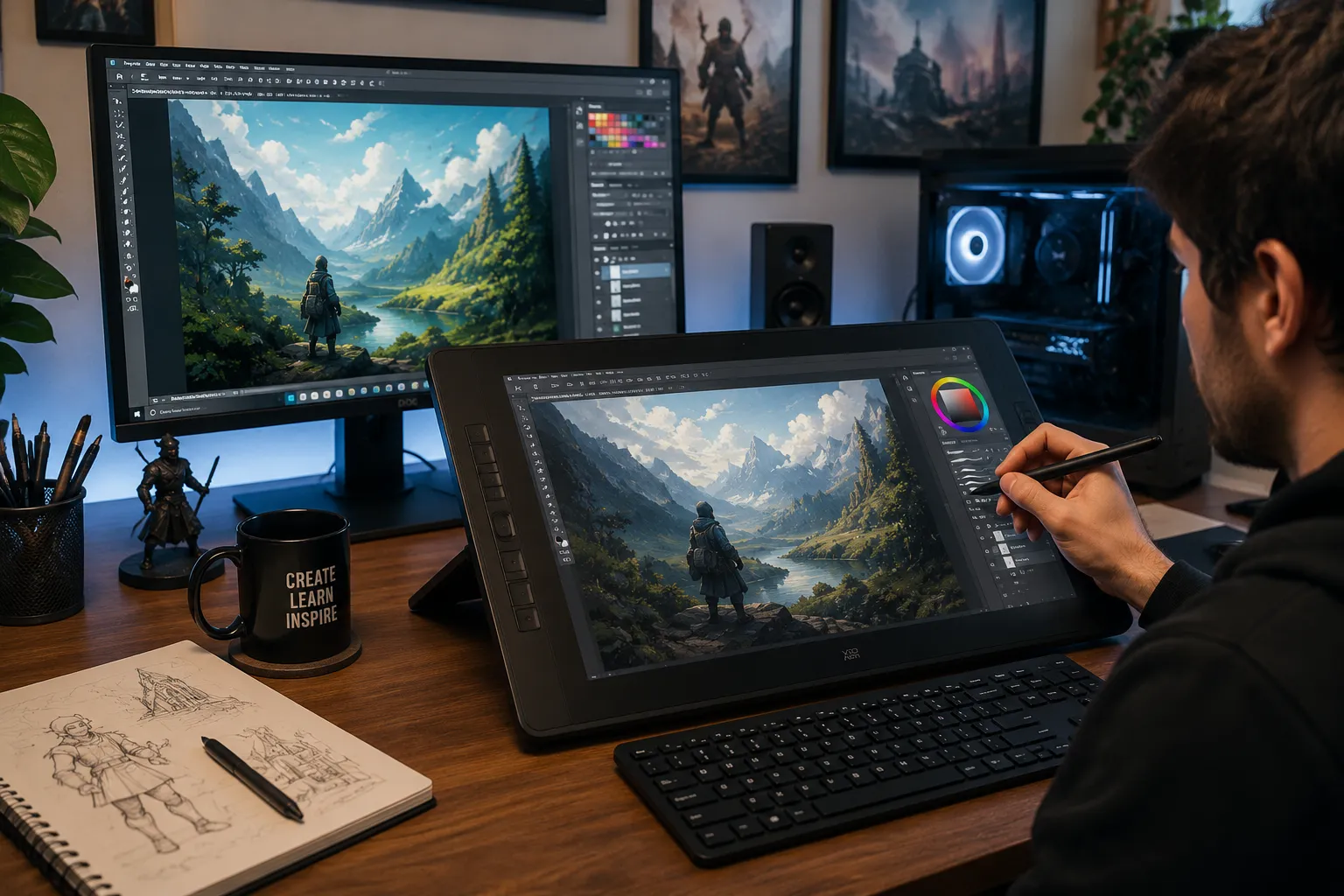
If you have searched for Procreate for Windows, you have probably discovered something frustrating: Procreate is one of the most popular digital art applications available, but getting it on a Windows PC isn't as simple as downloading another drawing program.
The short answer is no, Procreate is not currently available for Windows. The main Procreate application is designed for Apple's iPad, while Procreate Pocket is designed for the iPhone.
That doesn't mean Windows artists are out of options.
Advertisement
In fact, a Windows PC combined with a good drawing tablet and the right software can provide an incredibly powerful digital art setup.
This guide explains what you need to know about using Procreate on a PC, why there isn't an official Windows version, whether you should trust Procreate emulators, and which alternatives make the most sense for artists.
Can You Get Procreate on Windows?
No. There is currently no official version of Procreate for Windows 10 or Windows 11.
Procreate is developed specifically for Apple devices. The primary Procreate application runs on the iPad, while Procreate Pocket provides a version designed for the iPhone.
That means you cannot simply download Procreate from the Microsoft Store and install it on a Windows desktop or laptop.
If you see a website claiming to offer a "Procreate for Windows download," be careful.
Unless Procreate officially releases a Windows application, downloads claiming to be Windows versions of Procreate should not be treated as legitimate versions of the software.
Is Procreate Available for PC?
This depends on what you mean by PC.
If by PC you mean a Windows desktop or laptop, the answer is no.
Procreate's ecosystem is built around Apple's hardware, particularly the iPad and Apple Pencil.
This integration is one reason Procreate has become so popular with illustrators. Instead of connecting a separate graphics tablet to a computer, an artist can draw directly on the iPad screen.
If you're new to this entire process, our guide to what digital artwork is explains how tablets, computers, software, styluses, and digital canvases work together.
Why Isn't Procreate Available for Windows?
Procreate isn't simply a desktop application that happens to run on an iPad.
The software has been developed specifically around Apple's mobile hardware and operating systems.
Features such as pressure-sensitive drawing, touch gestures, Apple Pencil support, and the iPad's display are closely integrated into the Procreate workflow.
That focused approach has an important advantage: the developers only need to optimize Procreate for a relatively limited family of devices.
Windows is very different.
A Windows version would potentially need to work across thousands of combinations of:
- processors
- graphics cards
- displays
- touchscreens
- styluses
- drawing tablets
- drivers
- laptop manufacturers
- desktop configurations
Supporting that ecosystem would be a very different undertaking.
For artists, however, Windows offers something Procreate doesn't: choice.
You can choose your computer, monitor, drawing tablet, stylus, software, storage, and other equipment individually.
Is Procreate Coming to Windows?
There is currently no official Windows edition of Procreate.
Until Procreate announces one, artists should assume that using Procreate itself requires a compatible Apple device.
That distinction is important because searches for "Procreate PC" sometimes lead to unofficial downloads, emulators, or websites that imply a Windows version exists.
If your goal is simply to create digital art on a PC, you don't actually need Procreate.
There are several excellent Windows applications that accomplish many of the same tasks.
Can You Use a Procreate Emulator on Windows?
You may encounter websites or videos claiming that an emulator can run Procreate on Windows.
We generally wouldn't recommend building your art workflow around this approach.
Even if you manage to reproduce parts of an iOS or iPadOS environment on a PC, that doesn't guarantee the experience will work correctly with your drawing hardware.
Digital artists depend on things such as:
- pen pressure
- tilt detection
- low-latency strokes
- palm rejection
- touch gestures
- color accuracy
- reliable file saving
- graphics acceleration
A workaround that technically launches an application isn't necessarily suitable for hours of illustration work.
There is also a more basic issue: unofficial "Procreate for PC" downloads can come from sources you shouldn't trust.
For most artists, choosing a native Windows drawing application is the safer and more practical solution.
What Is the Best Procreate Alternative for Windows?
There isn't one perfect replacement because artists use Procreate for different reasons.
Some want realistic brushes.
Others want professional image editing.
Some create comics or concept art, while others simply want an inexpensive program for learning how to draw digitally.
Here are several types of software worth considering.
Adobe Photoshop
Photoshop remains one of the most powerful choices for artists who want digital painting and professional image editing in the same application.
It supports layers, masks, selections, custom brushes, color adjustments, typography, and extensive image-editing tools.
Photoshop also works with many popular drawing tablets.
If you're deciding between these workflows, read our complete Procreate vs Photoshop comparison.
Photoshop makes particular sense if your artwork eventually moves into photography, graphic design, print production, or other Adobe applications.
Krita
Krita is particularly attractive for artists who want a dedicated painting application without paying for a subscription.
It is designed around digital painting and illustration and includes brushes, layers, drawing assistants, animation features, and other artist-focused tools.
For someone starting digital art on a limited budget, Krita is one of the Windows applications worth investigating first.
Clip Studio Paint
Clip Studio Paint is another popular option for illustrators, comic artists, and character artists.
Its drawing and line-art tools make it particularly interesting for artists working on comics, manga, character design, and detailed illustration.
Other Digital Art Applications
There are many other choices depending on your workflow.
Instead of trying to find an application that looks exactly like Procreate, consider what you actually need.
Ask yourself:
- Do I primarily paint or draw?
- Do I need photo-editing tools?
- Do I create comics?
- Do I need vector graphics?
- Do I need animation?
- Do I want free software?
- Am I comfortable paying for a subscription?
- Do I need professional PSD support?
The answers will usually narrow your choices considerably.
Procreate vs Photoshop on Windows
If you already own a Windows PC, Photoshop is one of the most obvious alternatives to Procreate.
But the experience is different.
Procreate is built around drawing directly on an iPad with a stylus. Photoshop is a much broader creative application that can be used for illustration, photography, graphic design, compositing, and image manipulation.
A Windows artist can pair Photoshop with a pen tablet or pen display to create a setup that feels much closer to traditional drawing.
For a deeper comparison, see Procreate vs Photoshop for Illustration.
Do You Need an iPad to Use Procreate?
For the full Procreate application, yes—you need a compatible iPad.
You'll also probably want a compatible Apple Pencil if drawing and illustration are your primary goals.
That creates an important decision for beginners.
Should you buy an iPad specifically for Procreate, or use a Windows computer you already own?
The answer depends largely on your budget and preferred workflow.
iPad and Procreate vs Windows and a Drawing Tablet
These two setups approach digital art differently.
iPad + Procreate
An iPad gives you an all-in-one drawing system.
Your screen, computer, drawing surface, software, and stylus ecosystem are contained in one portable device.
That makes the setup especially attractive for artists who value portability and simplicity.
Windows PC + Drawing Tablet
A PC setup is more modular.
You might have:
Windows PC → drawing software → drawing tablet → monitor
This requires more equipment, but it also gives you much more flexibility.
You can upgrade individual components over time rather than replacing the entire drawing system.
If you're just getting started, read our best drawing tablets for beginners guide before choosing one.
What Kind of Drawing Tablet Do You Need for Windows?
There are three basic approaches.
Pen Tablet
A traditional pen tablet doesn't have its own display.
You draw on the tablet while looking at your computer monitor.
This can feel strange initially, but many professional artists work this way.
Pen tablets also tend to be among the least expensive ways to start creating digital art.
Pen Display
A pen display includes a screen.
Instead of looking at a separate monitor while drawing, you draw directly on the display.
This produces an experience that feels considerably closer to drawing on an iPad.
Standalone Drawing Tablet
Standalone tablets contain their own operating system and don't necessarily require a computer.
An iPad running Procreate is essentially one version of this concept.
If you're comparing equipment, our drawing tablets topic page collects more of our tablet guides in one place.
Can a Windows Drawing Setup Be Better Than Procreate?
Absolutely—but "better" depends on what you need.
A desktop workstation can offer advantages such as:
- larger displays
- more storage
- more RAM
- powerful graphics hardware
- larger drawing surfaces
- desktop software
- easier multitasking
- more peripheral choices
- upgradeable hardware
An iPad has different advantages:
- portability
- direct-on-screen drawing
- touch controls
- simple setup
- excellent stylus integration
- fewer cables
- Procreate
Neither approach is automatically better.
A professional artist working at a desk every day may prefer a large pen display connected to a powerful workstation.
Another artist might value being able to sketch anywhere with an iPad.
Does Your Monitor Matter for Digital Art?
Yes.
Once you move from an iPad to a desktop drawing setup, your monitor becomes an important part of your creative workflow.
Brightness, gamma, color temperature, color gamut, and calibration can all influence how you perceive your artwork.
A poorly configured display can cause you to compensate for colors that aren't actually wrong.
For example, an overly bright monitor may encourage you to create artwork that looks too dark on other devices.
We've put together a complete guide to the best monitor settings for digital art that explains how to configure your display for more consistent color.
Can Procreate Files Be Opened on Windows?
This requires an important distinction between Procreate's native file format and formats you can export from Procreate.
Procreate can export artwork into several widely supported formats, including:
- PSD
- JPEG
- PNG
- TIFF
PSD is especially useful if you plan to move artwork into Adobe Photoshop because Procreate can preserve important layer information during export.
So if you use an iPad for drawing but a Windows workstation for finishing your artwork, you aren't necessarily locked into one device.
A workflow could look like this:
Procreate on iPad → export PSD → Photoshop on Windows
That gives artists a practical way to combine both platforms.
Can You Use Procreate Brushes on Windows?
Not directly in the same way you would inside Procreate.
Procreate has its own brush system, while applications such as Photoshop, Krita, and Clip Studio Paint have their own brush engines and formats.
Instead of choosing software purely because of a specific brush pack, consider the application's overall brush engine.
Look for features such as:
- pressure sensitivity
- opacity control
- brush stabilization
- texture
- blending
- tilt support
- customizable brush tips
- brush organization
The feel of the brush engine can matter more than the number of brushes included with the program.
Is Windows Good for Digital Art?
Yes. Windows can be an excellent platform for digital artists.
One of its biggest advantages is the enormous range of compatible hardware.
Artists can build inexpensive beginner setups or extremely powerful professional workstations.
A beginner might start with an existing laptop and an affordable screenless drawing tablet.
A professional illustrator might use a high-performance desktop, calibrated monitor, and large pen display.
Both are Windows digital-art setups.
Your artistic fundamentals ultimately matter much more than the price of the equipment.
If you're developing your drawing skills, our human anatomy for artists resources are a useful place to continue learning.
You can also explore our best anatomy books for artists if you prefer studying from physical references.
What Do You Need to Start Digital Art on Windows?
A basic Windows digital-art setup is surprisingly simple.
You need:
- A Windows desktop or laptop
- Digital art software
- A mouse or drawing tablet
- A monitor
- Artwork to create
Technically, you can start drawing digitally with a mouse.
A pressure-sensitive drawing tablet, however, makes illustration much more natural.
Pressure sensitivity allows compatible software to respond to how hard you press the stylus, potentially changing properties such as brush size or opacity.
For beginners buying their first device, start with our guide to the best drawing tablets for beginners.
Should You Buy an iPad Just for Procreate?
This is where the decision becomes personal.
Buying an iPad specifically for Procreate can make sense if you value:
- portability
- drawing directly on the screen
- Apple Pencil
- a streamlined interface
- minimal setup
- the Procreate ecosystem
But don't assume you need an iPad to become a digital artist.
If you already own a capable Windows computer, purchasing an affordable drawing tablet and using Windows-compatible art software may cost considerably less than buying an entirely new device.
Beginners should be especially cautious about assuming expensive equipment will immediately improve their artwork.
The tool matters.
The artist matters more.
Is Procreate Worth Switching From Windows for?
For some artists, yes.
But Procreate alone shouldn't necessarily determine which computer ecosystem you use.
Think about everything else you do.
If your computer is also used for:
- gaming
- video editing
- 3D modeling
- photography
- graphic design
- web development
- animation
- work or school
then replacing your Windows workflow purely to access one drawing application may not make sense.
You could instead add an iPad later and use both systems together.
Because Procreate can export PSD files, an iPad and Windows PC don't have to compete with each other. They can be parts of the same creative workflow.
Procreate for Windows FAQ
Is Procreate free on Windows?
No. There is no official Windows version of Procreate.
Can I download Procreate on Windows 11?
No official Procreate application is currently available for Windows 11.
Can I use Procreate on a Windows laptop?
Not natively. Procreate is designed for Apple devices rather than Windows laptops.
Is Procreate available in the Microsoft Store?
There is no official Procreate for Windows application available through Microsoft's Windows software ecosystem.
Is there a web version of Procreate?
Procreate is an installed creative application rather than a browser-based version of the full drawing program.
What is the closest thing to Procreate on Windows?
The best alternative depends on what you create. Photoshop is powerful for professional illustration and image editing, Krita is compelling for digital painting, and Clip Studio Paint is particularly popular for illustration and comics.
Do professional artists use Windows?
Yes. Professional digital artists use Windows, macOS, iPadOS, and other platforms. Software, hardware, workflow, and individual preference matter more than the operating system alone.
Can I use an iPad and Windows PC together for digital art?
Yes. One useful workflow is creating artwork in Procreate on an iPad, exporting the project as a PSD, and continuing to work on it in Photoshop on a Windows PC.
The Bottom Line
You cannot currently install an official version of Procreate on Windows.
If Procreate itself is the reason you're choosing a device, you'll need to stay within Apple's supported ecosystem.
But if your actual goal is simply to create digital art, Windows gives you plenty of excellent options.
A Windows PC paired with a drawing tablet and software such as Photoshop, Krita, or Clip Studio Paint can become a powerful illustration workstation.
And if you already own a Windows computer, that may be the smartest place to start.
Before buying new hardware, compare our best drawing tablets for beginners, learn how to configure the best monitor settings for digital art, and read our Procreate vs Photoshop for Illustration comparison.
The best digital-art setup isn't necessarily the one with Procreate.
It's the one that gets out of your way and lets you create.